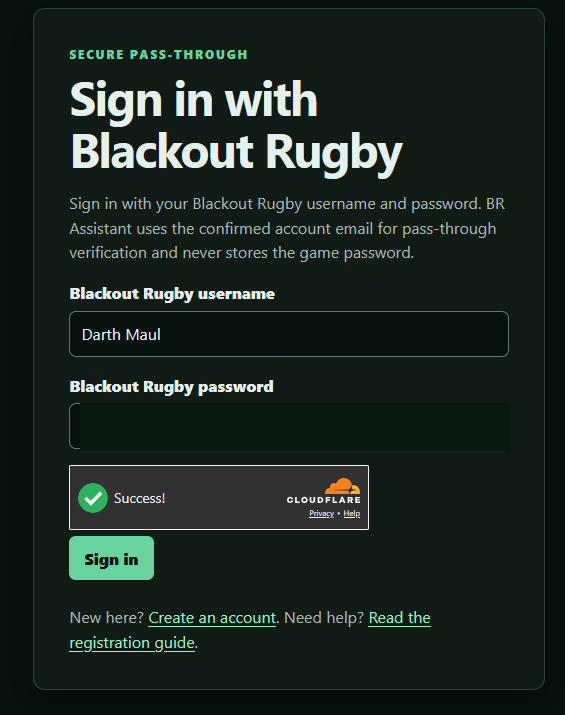
Portal account
Register for BR Assistant
Set up the Blackout Rugby account details BR Assistant needs before creating your portal account.
Before you start
You cannot register for BR Assistant unless you already have a Blackout Rugby game club and login.
You also need a specific manager username inside the game. If your account still says New User, set your manager name first.
If you created your club with Apple or Google sign-in, follow this guide to add an email/password login and set the manager username before using the portal registration form.
-
Create your club in Blackout Rugby
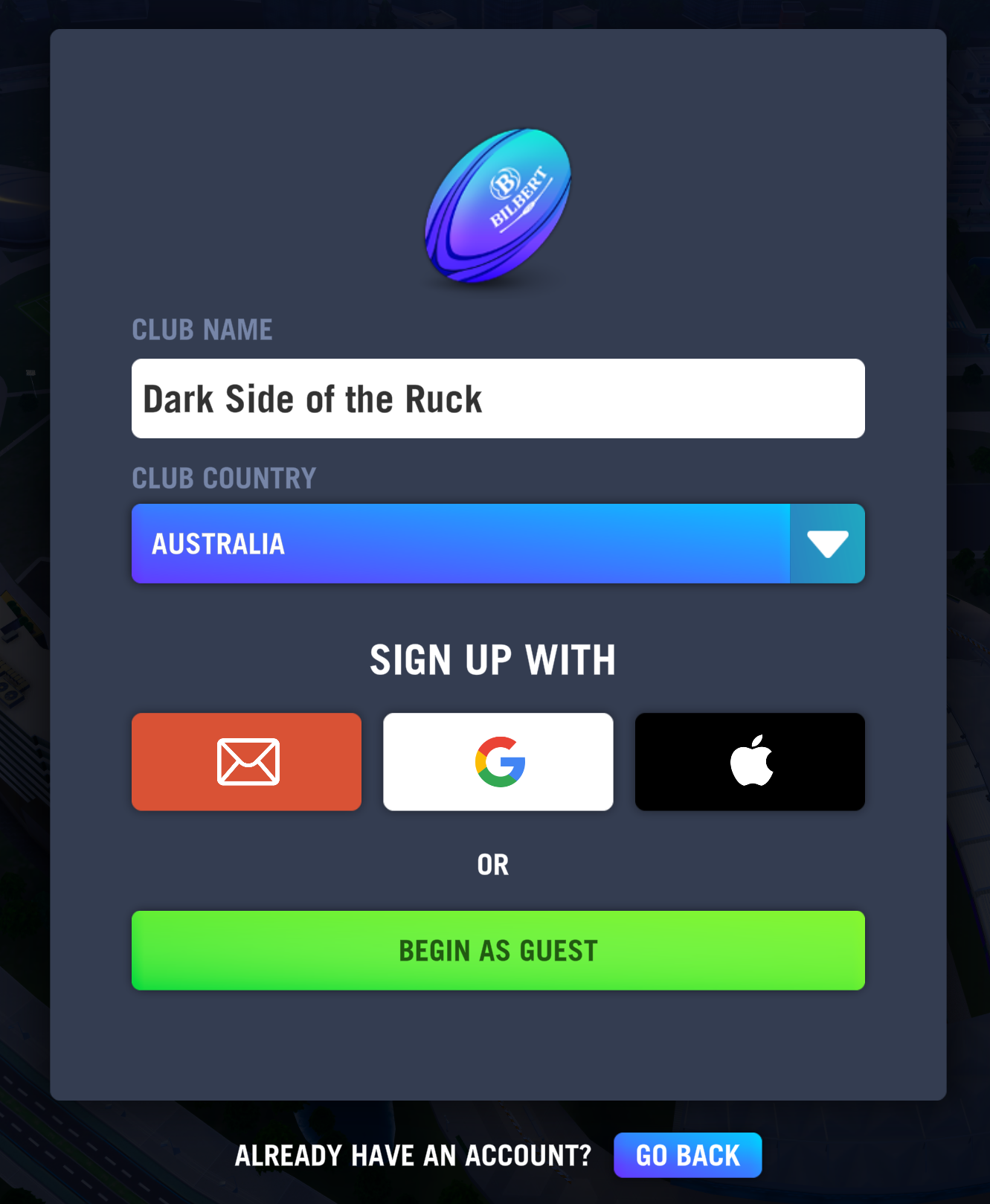
Create a Blackout Rugby club first. Choose a club name, pick the club country, and select the sign-up method you want to use.
The email option creates a normal email-and-password login. The Apple and Google options create a single sign-on login that may start with a generic manager name.
-
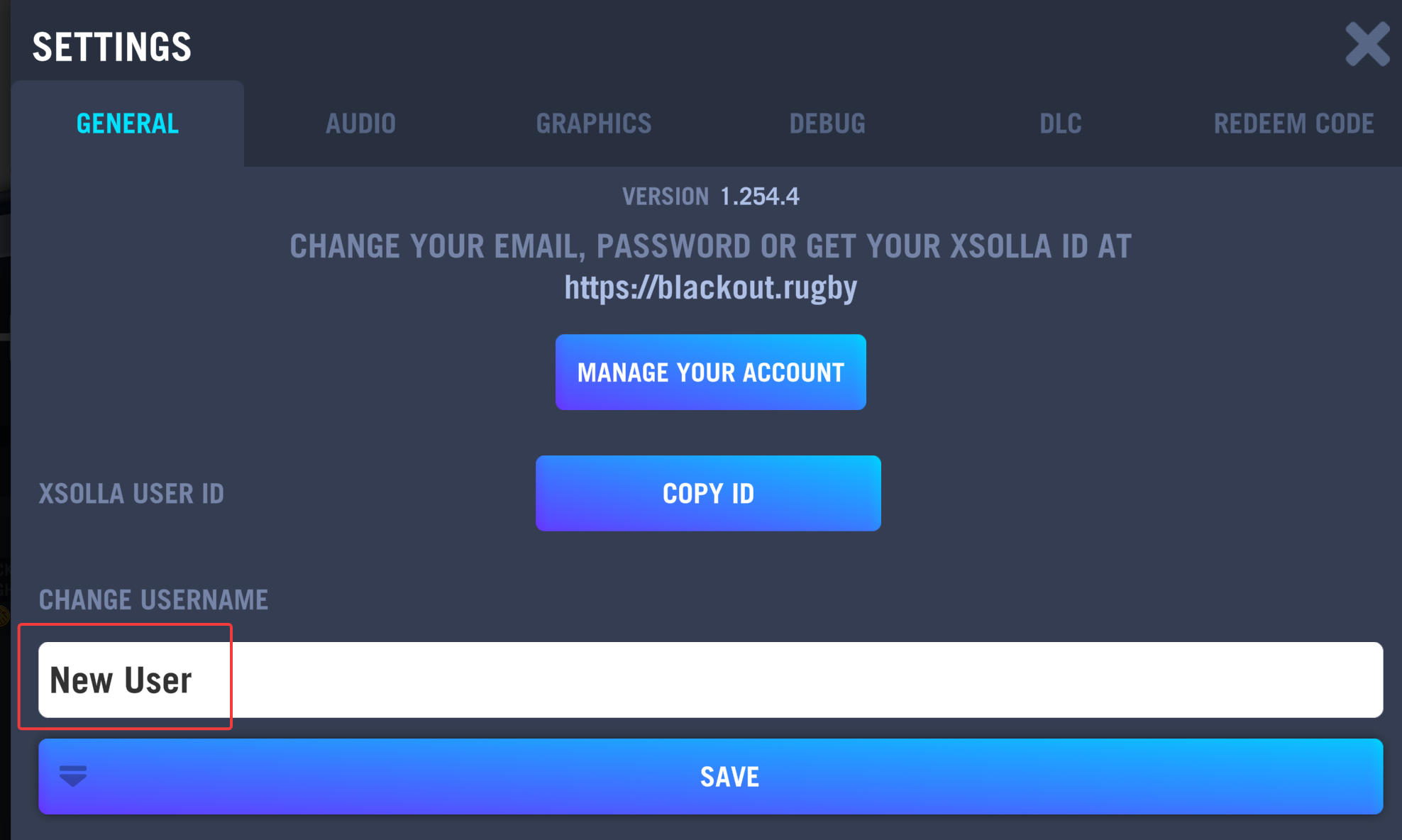
Check whether your manager name is generic
If you used Apple or Google sign-in, your account may show the placeholder name New User. BR Assistant needs your real in-game manager username, so change it before registering.
-
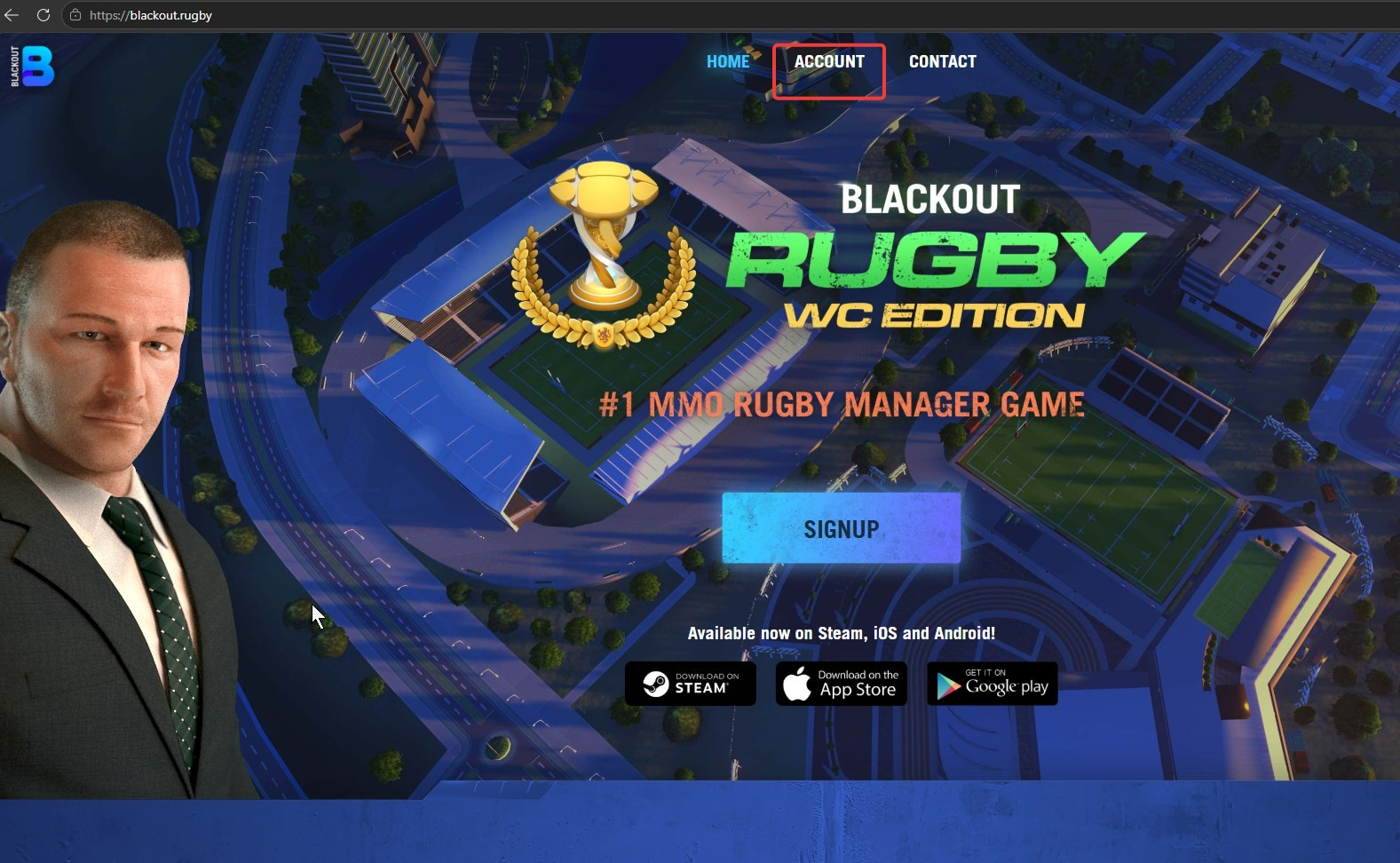
Open the Blackout Rugby account site
Visit blackout.rugby and choose Account from the top menu.
-
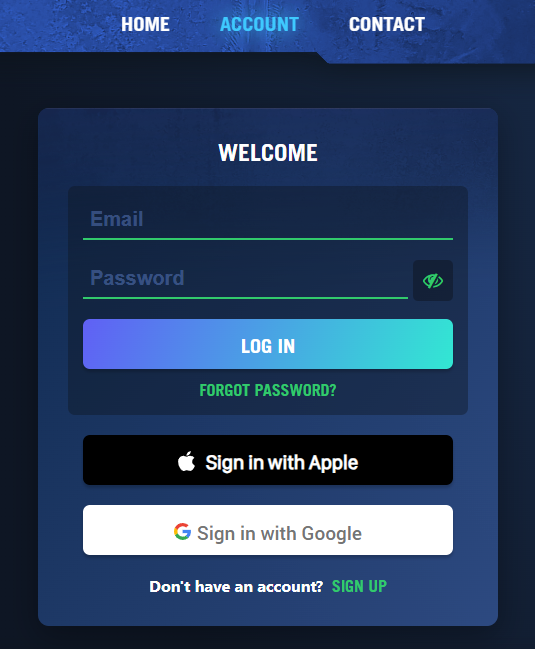
Sign in with the same method
Use the same sign-in method you used when you created the club. In this example the account was created with Apple sign-in.
-
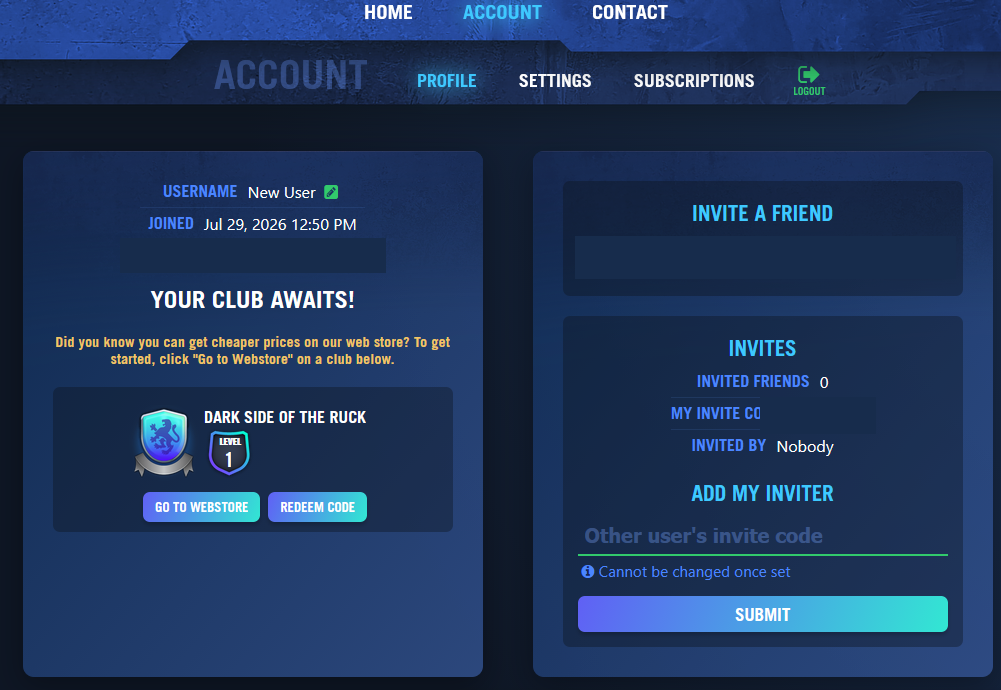
Review the account profile
After signing in, confirm you are looking at the account for the club you want to connect to BR Assistant.
-
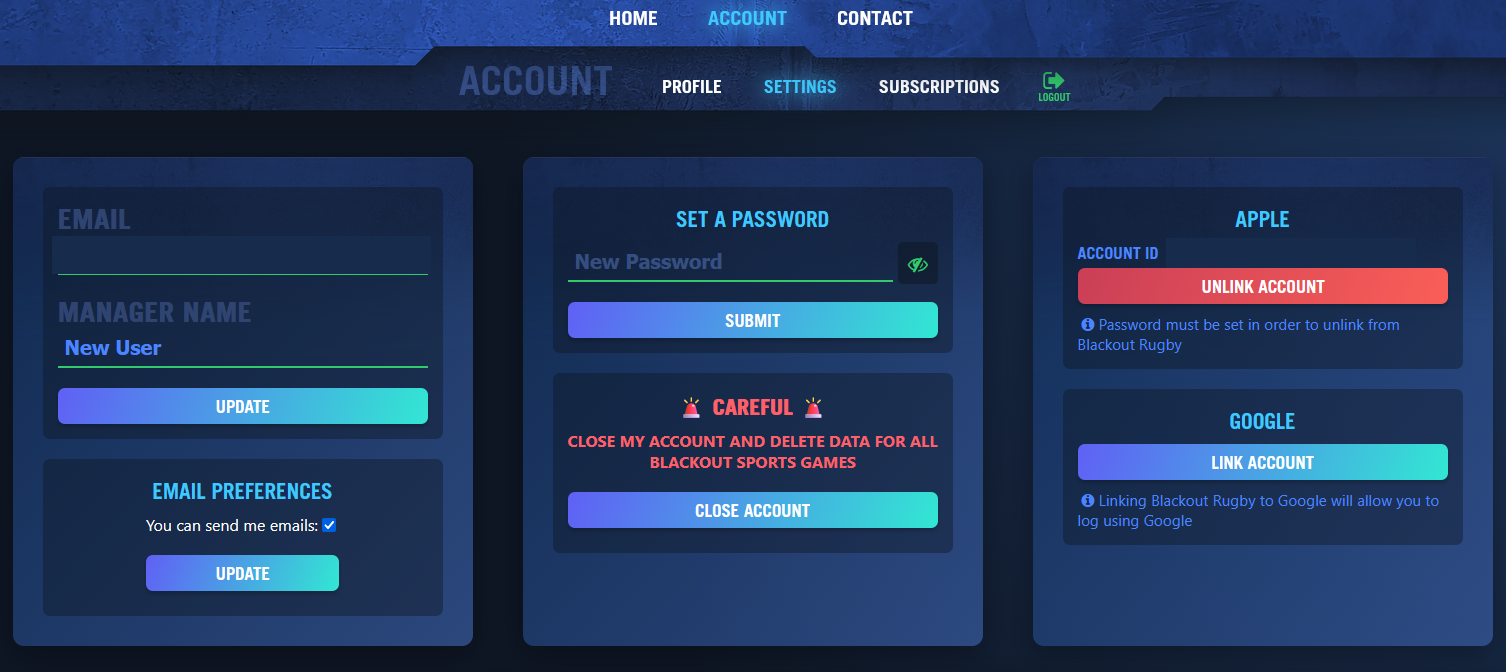
Open account settings
Select Settings. This is where you can set the manager name and prepare an email/password login.
-
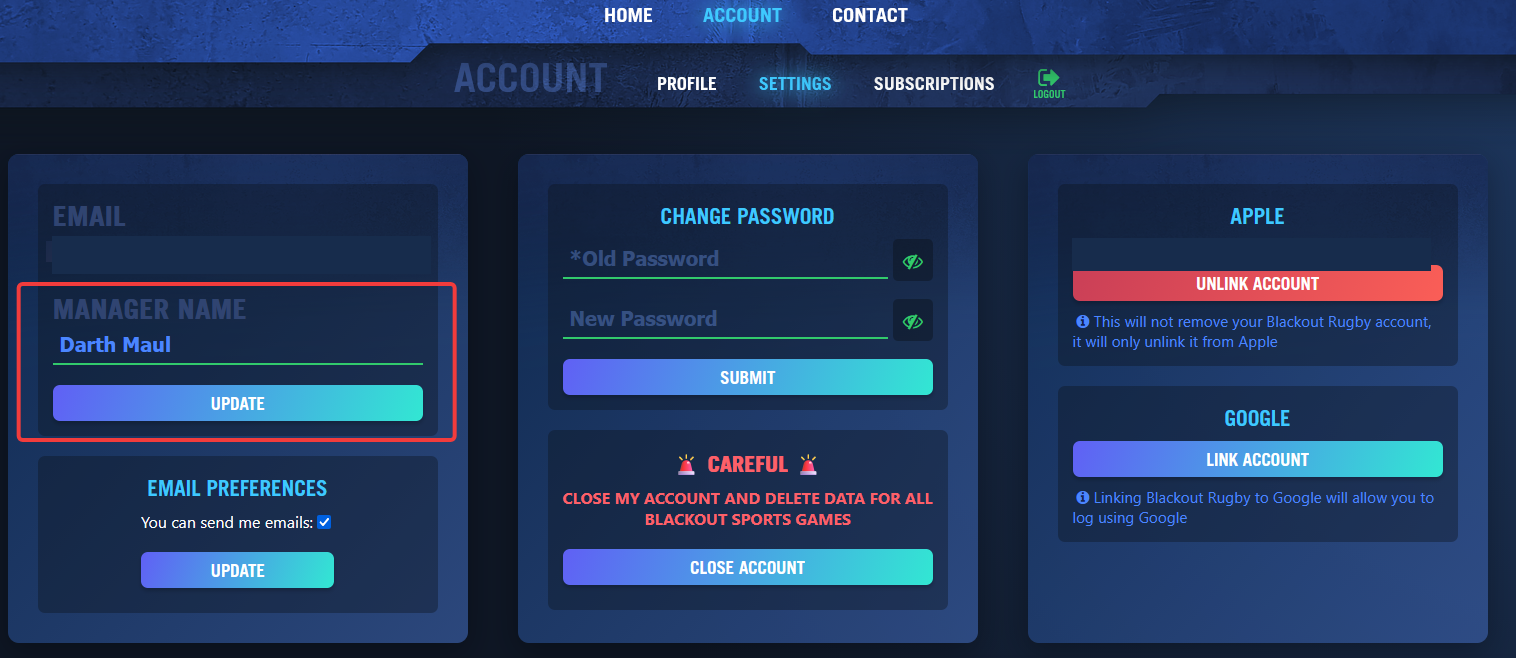
Set your manager username
Enter the manager name you want to use inside the game and click Update. Pick the exact name you want BR Assistant to verify.
-
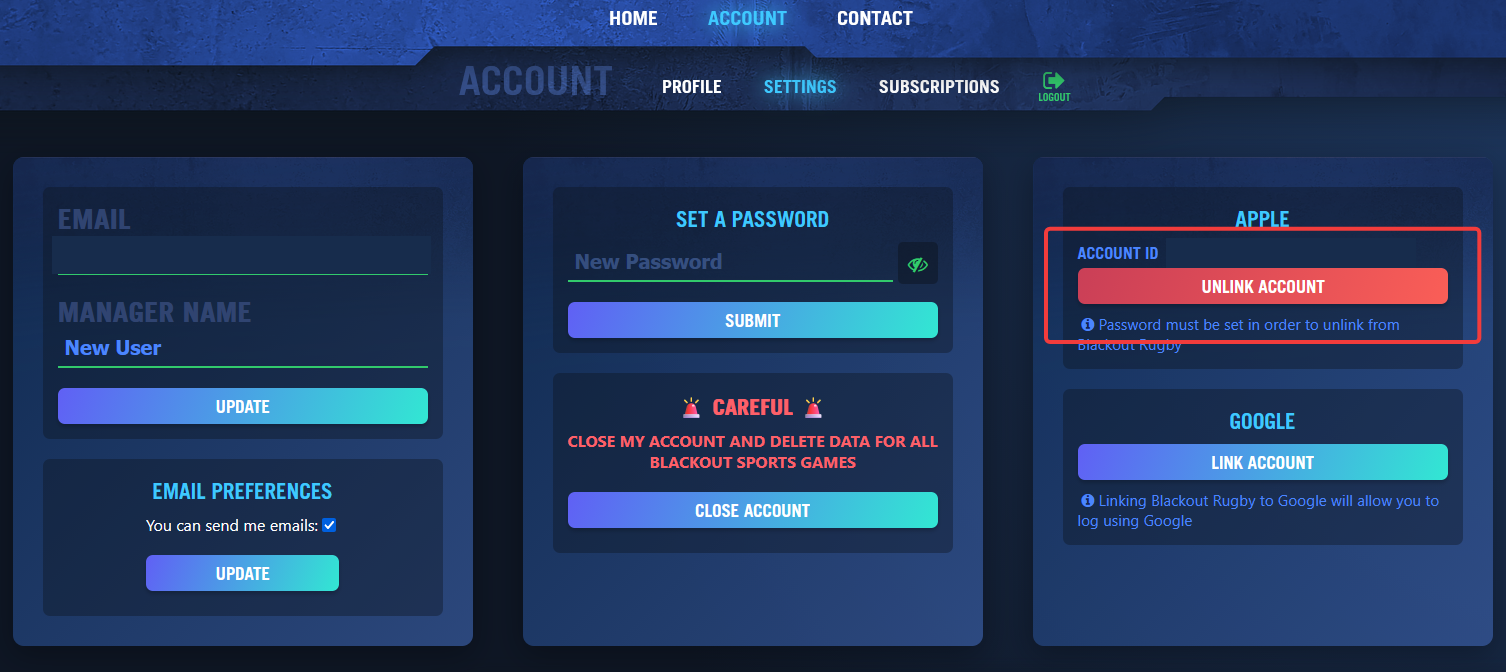
Unlink single sign-on
-
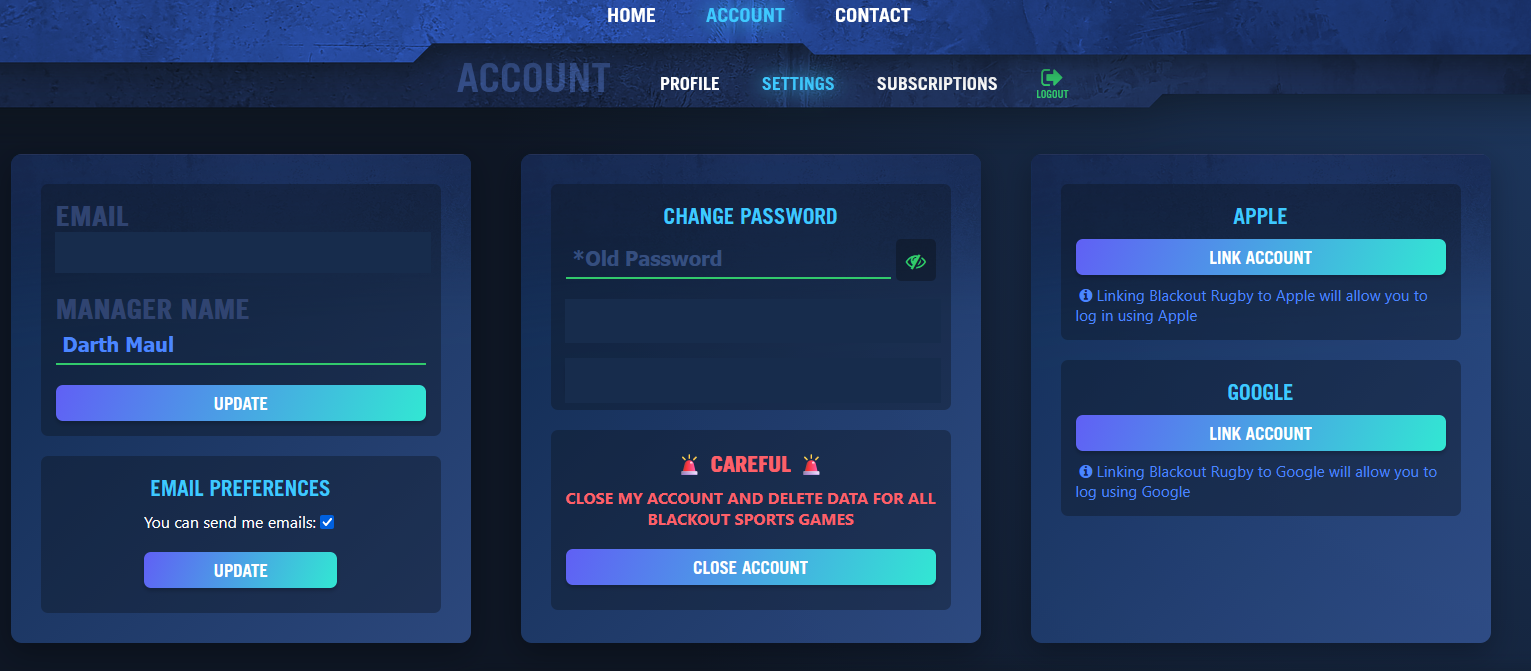
Set a password for the game account
Enter a new Blackout Rugby password and click Submit. BR Assistant will use this only to verify the game account during registration and sign-in; it does not store the game password.
-
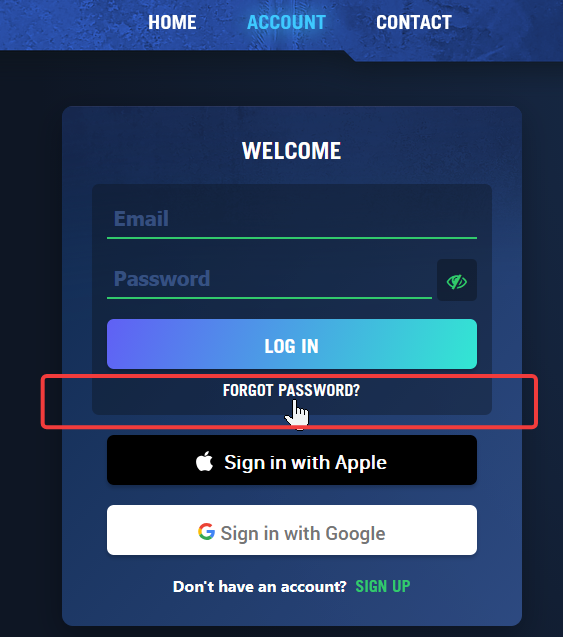
Recover the password if sign-in fails
If the account website does not accept the password, use Forgot password? and follow the recovery flow for the email attached to the game account.
-
Register in BR Assistant
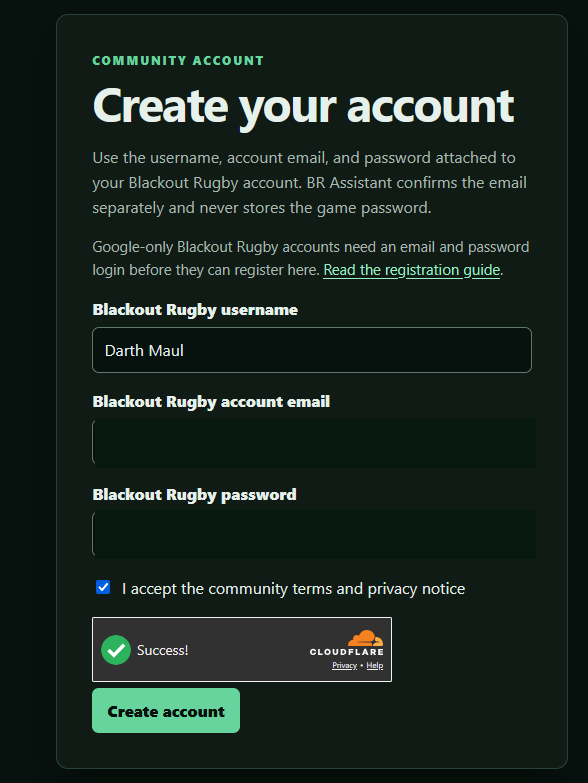
Once you have a manager username, game-account email, and game-account password, open the BR Assistant registration page.
-
Confirm your portal email
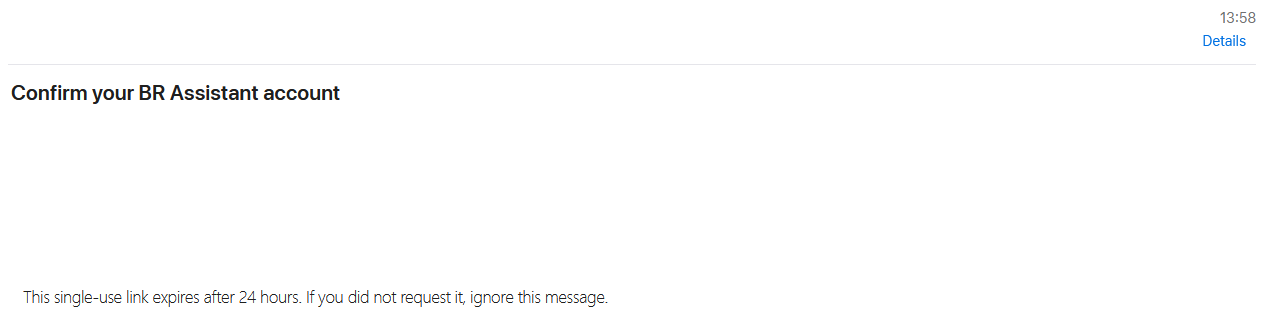
After registration, BR Assistant sends a confirmation email. Open the email and use the confirmation link before trying to sign in.
-
Sign in to BR Assistant
Use your Blackout Rugby manager username and password when signing in to BR Assistant. The sign-in form uses the username, not the email address.